GLIF Agent Website Tutorial Part 9- Change operator address
If you don't understand the basics of GLIF Agents, Agent owners, or how to create your Agent on the GLIF website, we suggest starting with Part 1 and Part 2 of this tutorial series. You can find all the tutorials about using Agents on the GLIF website on this page. You can find the instructions about the Agent's command on the GLIF Command Line Interface on this page.
Before You Begin
In the previous parts of this tutorial series, you have created or completed the following:
- Your Agent Owner multisig wallet (Part 1 & Part 2)
- Your Agent smart contract (Part 1 & Part 2)
- Adding your miner to the Agent (Part 3)
- Borrowing FIL from GLIF (Part 4)
- Moving FIL from Miner to Agent and back (Part 5)
- Withdrawing rewards / cash advance (Part 6)
- Removing a miner from an Agent (Part 7)
- Make a payment to GLIF (Part 8)
In this part of the tutorial, we will guide you through the process of changing operator address using the GLIF website interface.
Step 1: Initiate Remove Miner Operator Proposal
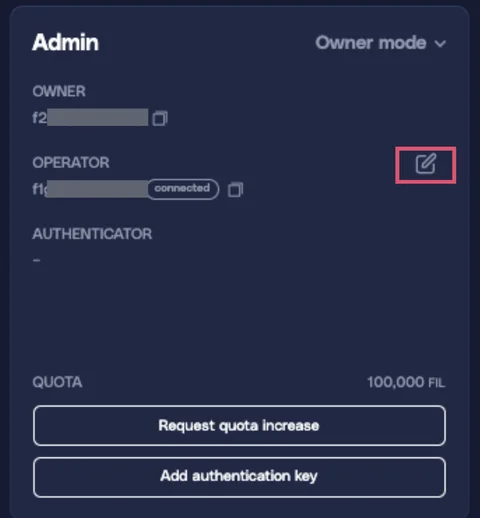
- Navigate to the “Admin” section on your Agent page. Make sure you are in the “Owner mode”
- Click the icon next to the operator.
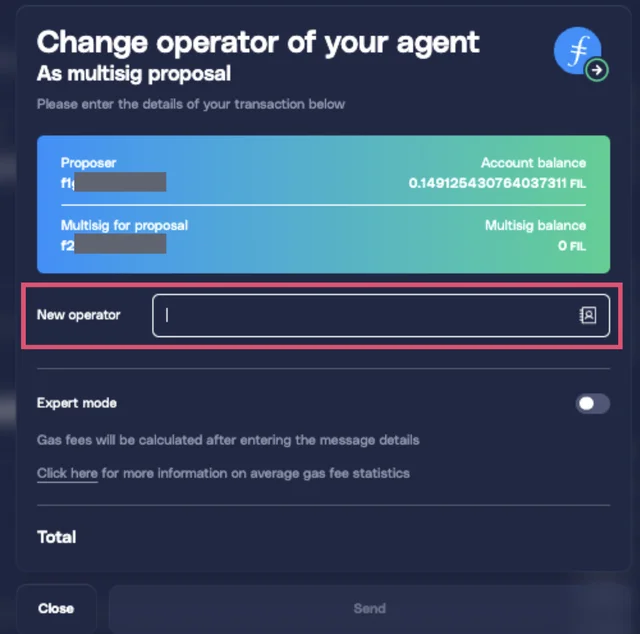
- In the “Change Operator of Your Agent” multisig proposal interface, enter the new operator address for the miner.
- Click “Send” and approve the transaction in your wallet.
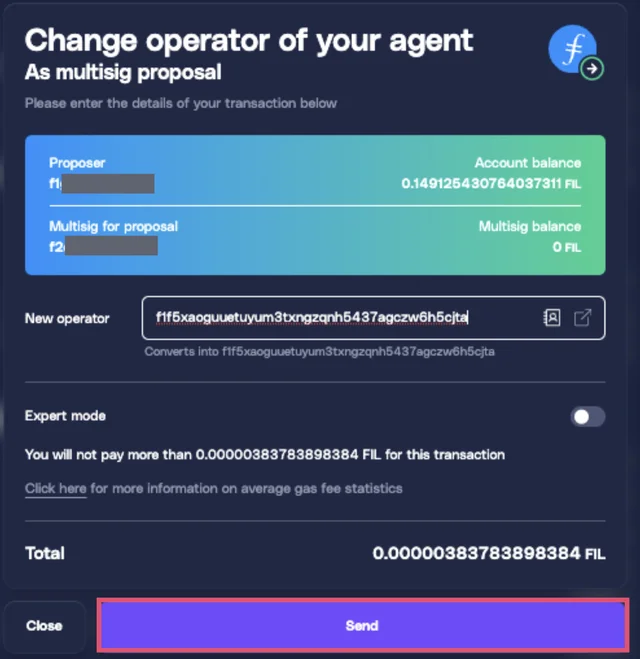
- Wait for the transaction to complete. A “Transfer Operator” proposal will appear in the “Agent Owner Proposals” section.

Step 2: Approve the Proposal
- Connect to another approver wallet from your Agent's owner multisig wallet.
- Navigate to the “Agent Owner Proposals” section and find the “Transfer Operator” proposal.
- Click “Approve Proposal”.
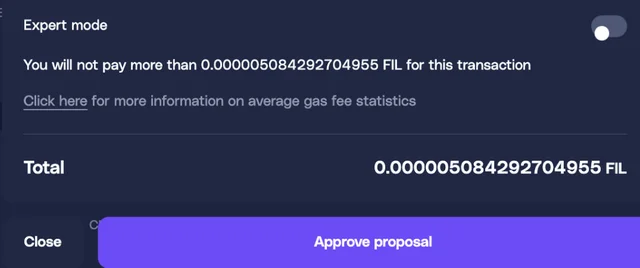
- Confirm the transaction in your wallet.
Step 3: Accept Operator Role
- Connect to the proposed operator wallet.
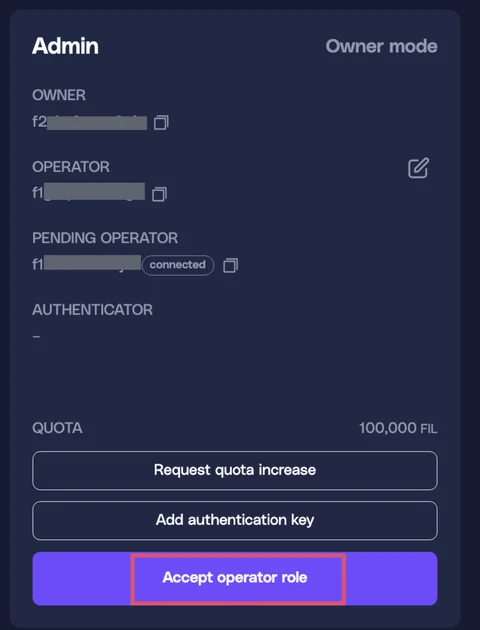
- Navigate to the “Admin” section of the Agent page. You will see the address of the pending operator.
- Click “Accept operator role”.
- Click “Send”.
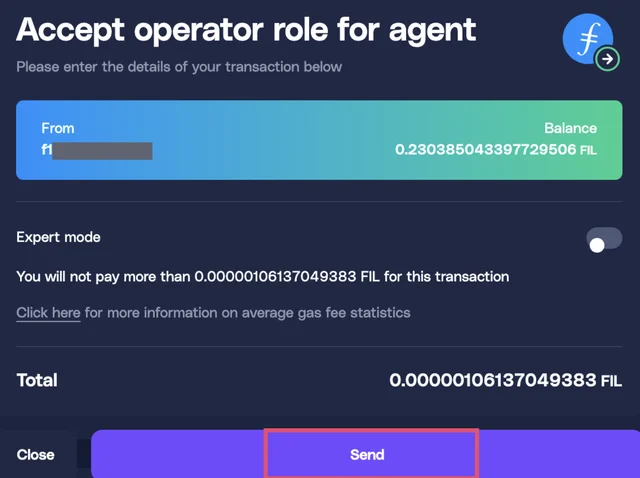
- Wait for the transaction to complete (1–2 minutes). The updated operator address will appear in the “Admin” panel.
Congratulations!
You've successfully change your operator address!
Next Steps:
This is the end of this tutorial series. If you would like to learn how to withdraw FIL from the Agent to an exchange, check out this tutorial.
Join our community!
- 📢 Stay informed with updates on our blog and X (Twitter)
- 🤝 Connect with us through Discord and Telegram for support and partnerships
- 💬 If you encounter any difficulties, please open a Discord support ticket
- ⚠️ Beware of scammers! GLIF team members have the role “GLIF” or “Moderator”