GLIF Agent Website Tutorial Part 3 — Add Your Miner
If you don't understand the basics of GLIF Agents, Agent owners, or how to create your Agent on the GLIF website, we suggest starting with Part 1 and Part 2 of this tutorial series. You can find all the tutorials about using Agents on the GLIF website on this page. You can find the instructions about the Agent's command on the GLIF Command Line Interface on this page.
Before You Begin
In the previous parts of this tutorial series, you created:
- Your Agent Owner multisig wallet
- Your Agent smart contract
With your Agent now set up, the next step is to add a miner to your Agent. By doing this, you will provide your Agent with the asset in your miner as the collateral needed to borrow FIL from GLIF. In this part of the tutorial, we will guide you through the process of adding a miner to your Agent using the GLIF website interface.
Step 1: Proposing an Ownership change (Through lotus)
This step occurs outside of GLIF and our command line. Depending on what mining software you use, this step will change. However, if you are running the lotus-miner command line, you can run the following command to propose the ownership change:
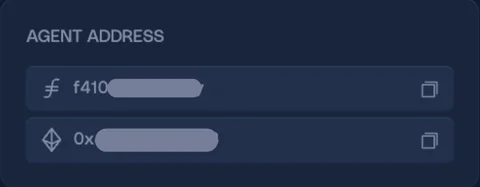
lotus-miner actor set-owner --really-do-it <agent-f410> <current-miner-owner>
Your Agent's f4 address can be found on the Agent page of the website:
Step 2: Propose the “Add Miner” Proposal (Through website UI)
- Connect to the wallet that is one of the signers of your multisig created in Part 2.
IMPORTANT
When you propose transactions to your agent using your owner wallet, you must do so with a non-Ledger wallet, such as the Filecoin Snap wallet or a burner wallet. You cannot propose these transactions from a Ledger device. The Ledger can only act as the approver.
This is the same for all owner transactions on the agent: they must be initiated with a non-Ledger signer.
- Go to the “Miners” section in your Agent page. Click “Add a Miner”.

- Enter your miner address in the “Add a miner to your Agent” page.
- Click “Sign transaction”.
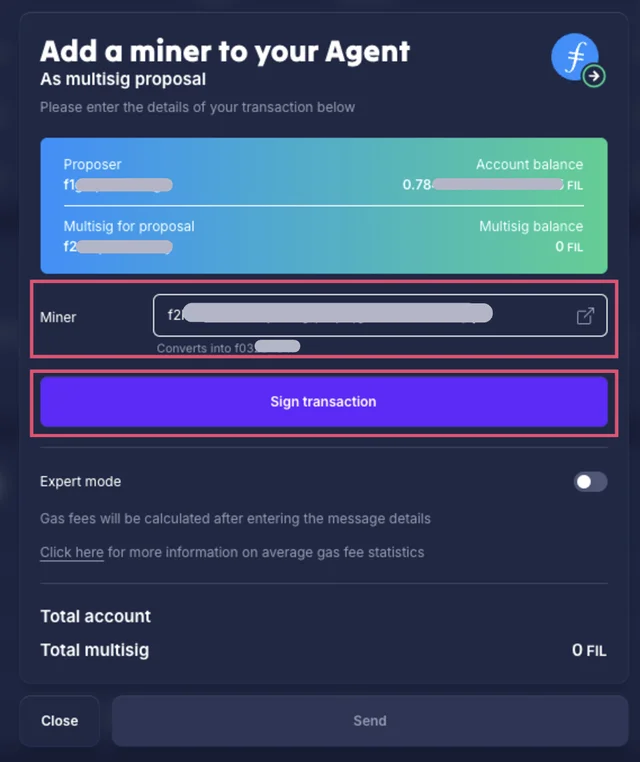
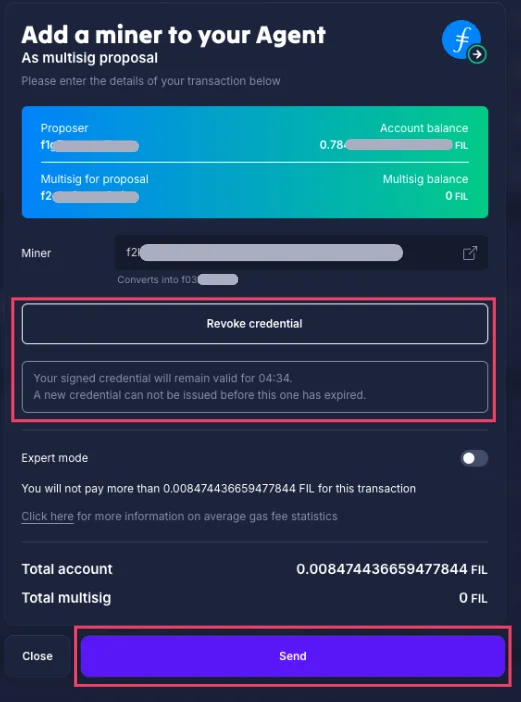
- After clicking “Sign transaction”, a message will be displayed indicating how many minutes remain for this credential. You can also revoke the credential by clicking “Revoke credential”.
WARNING
If you do not complete the transaction and sign the proposal with your other signer wallets within 5 minutes, you will need to repeat this step.
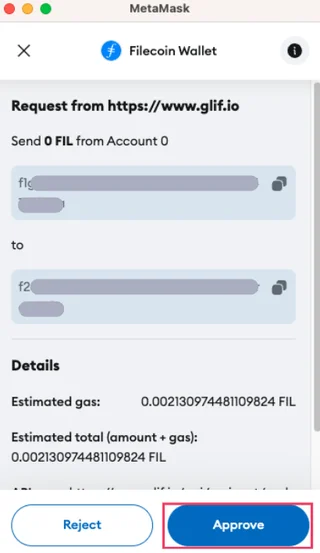
- Click “Send” to create a new proposal. You will be prompted to sign the transaction with your currently connected wallet.
- Approve the transaction in your wallet.
- Wait for the transaction to complete, which may take 1-2 minutes.
Step 3: Approve the proposal by other signers
Your Agent owner wallet is a multisig wallet which requires multiple signers to confirm important changes. Now that you have created aproposal to add a miner, you need the other signer(s) to approve it.
- Connect with the other signer wallets. You can find all signer wallets in the “Required Approvals” section on your multisig page. These should be the same wallets used in Part 2.
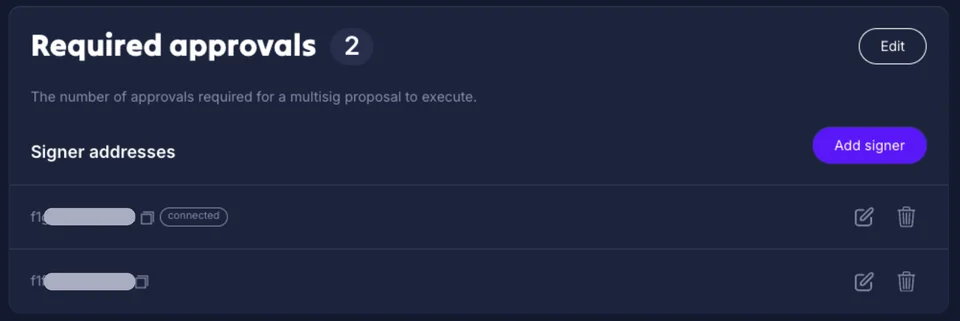
- Navigate to the “Multisig” tab.

- The “AddMiner” proposal should appear in the “Agent owner proposals” queue.

- Select the Proposal that you just created.
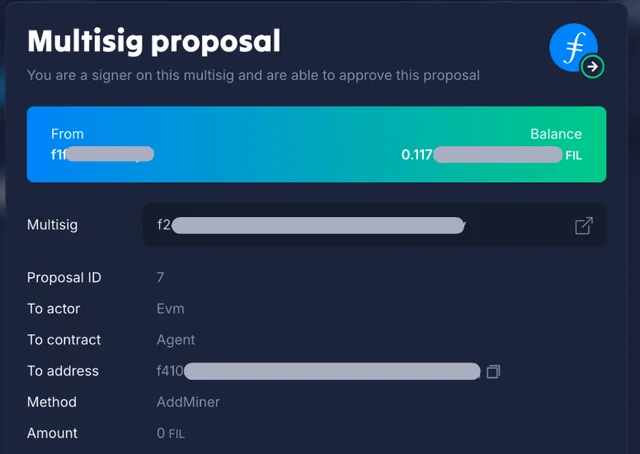
- Click “Approve proposal”.
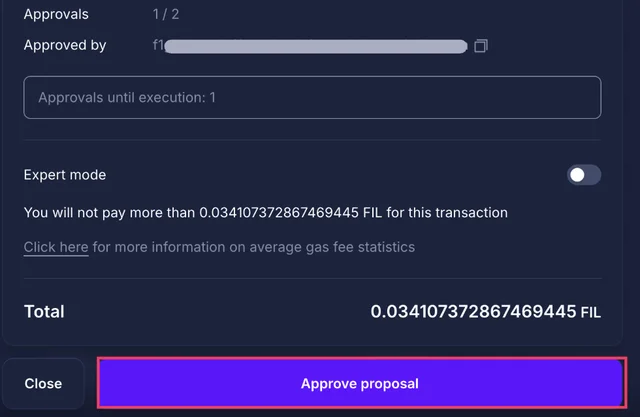
- Confirm the transaction in your wallet.
- If your multisig requires approval from more than two signers, repeat the same steps using the other signer wallets. Once approved by the required number of signers, the proposal will be executed on-chain. Wait for the transaction confirmation, which may take a few minutes.
- Return to your Agent's page on the GLIF website. You should now see the newly added miner associated with your Agent in the “Miners” section.

Congratulations!
You've successfully added a miner to your Agent!
Next Steps:
In Part 4 of this tutorial, we will show you how to borrow FIL.
Join our community!
- 📢 Stay informed with updates on our blog and X (Twitter)
- 🤝 Connect with us through Discord and Telegram for support and partnerships
- 💬 If you encounter any difficulties, please open a Discord support ticket
- ⚠️ Beware of scammers! GLIF team members have the role “GLIF” or “Moderator”